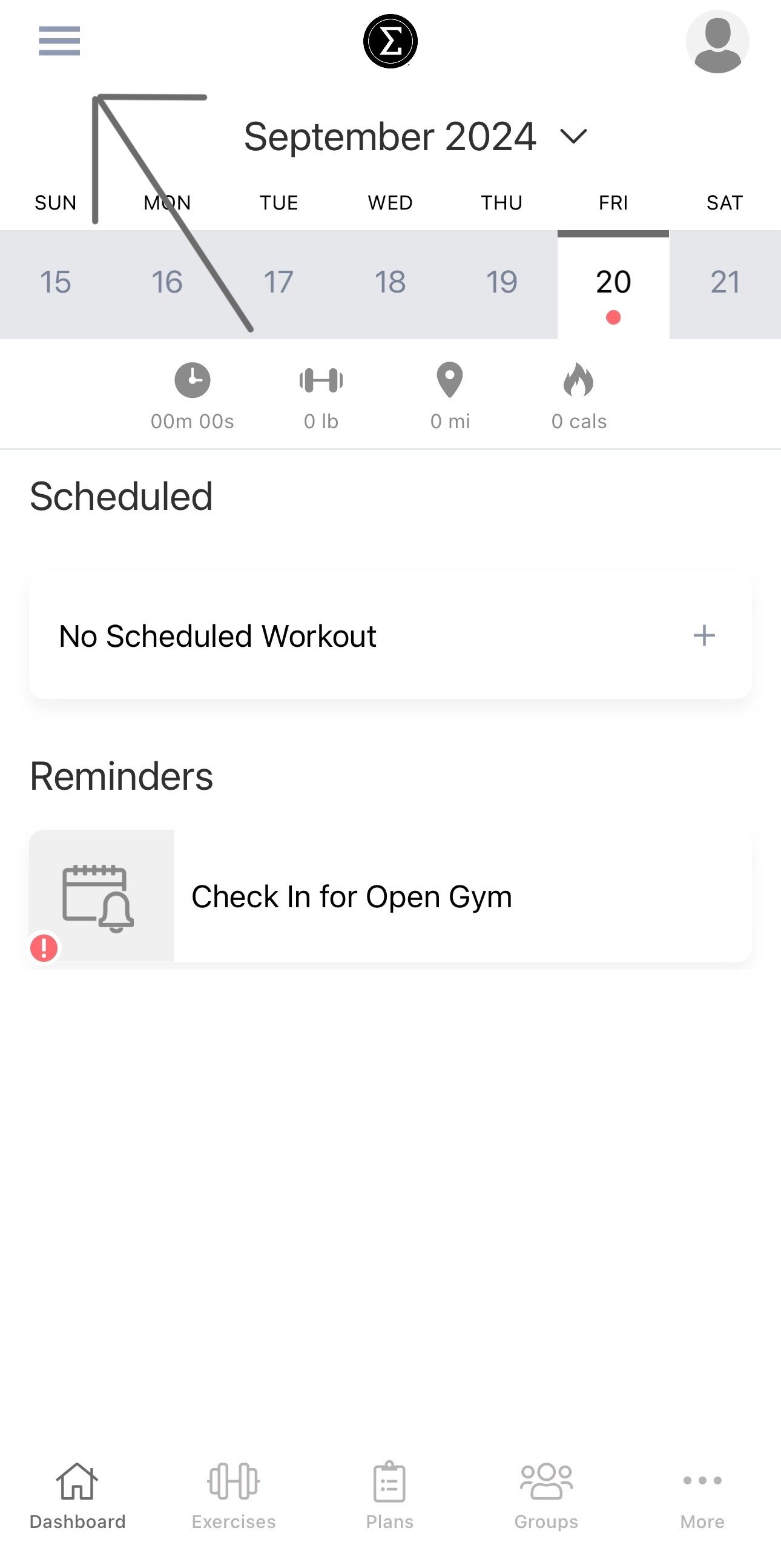
Here is a Step-By-Step guide to logging in and accessing your SPC app!

Step 1: Welcome!
Thank you for joining a family, where we all come together for the sole purpose of performing to outperform. Upon purchasing a package, you will receive a welcome email with your login information, such as this one. You will then be prompted to download the app by clicking the appstore or google play banner depending on your device. Be sure to check spam and junk folders in case the email is not found

Step 2: Log in.
With the account created upon sign up, use the email and password associated with your account on this page to log in. If you forgot your password, simply click on the “forgot Password?” Link and follow the steps to reset or retrieve your password. You can also refer back to the welcome email for your information.


step 3: Barcode for Open Gym Check-In
Welcome to our custom app. IN here you will find your unique barcode for check in during Desk Hours. Simply Click On the “Check in for Open gym” banner, then your barcode will pop up with your personal ID Number! Remember, you must first sign the waiver before gaining access to our facility. This barcode can be access by simply clicking on the “Dashboard” button with the house at the bottom of your screen.
Step 4: Groups
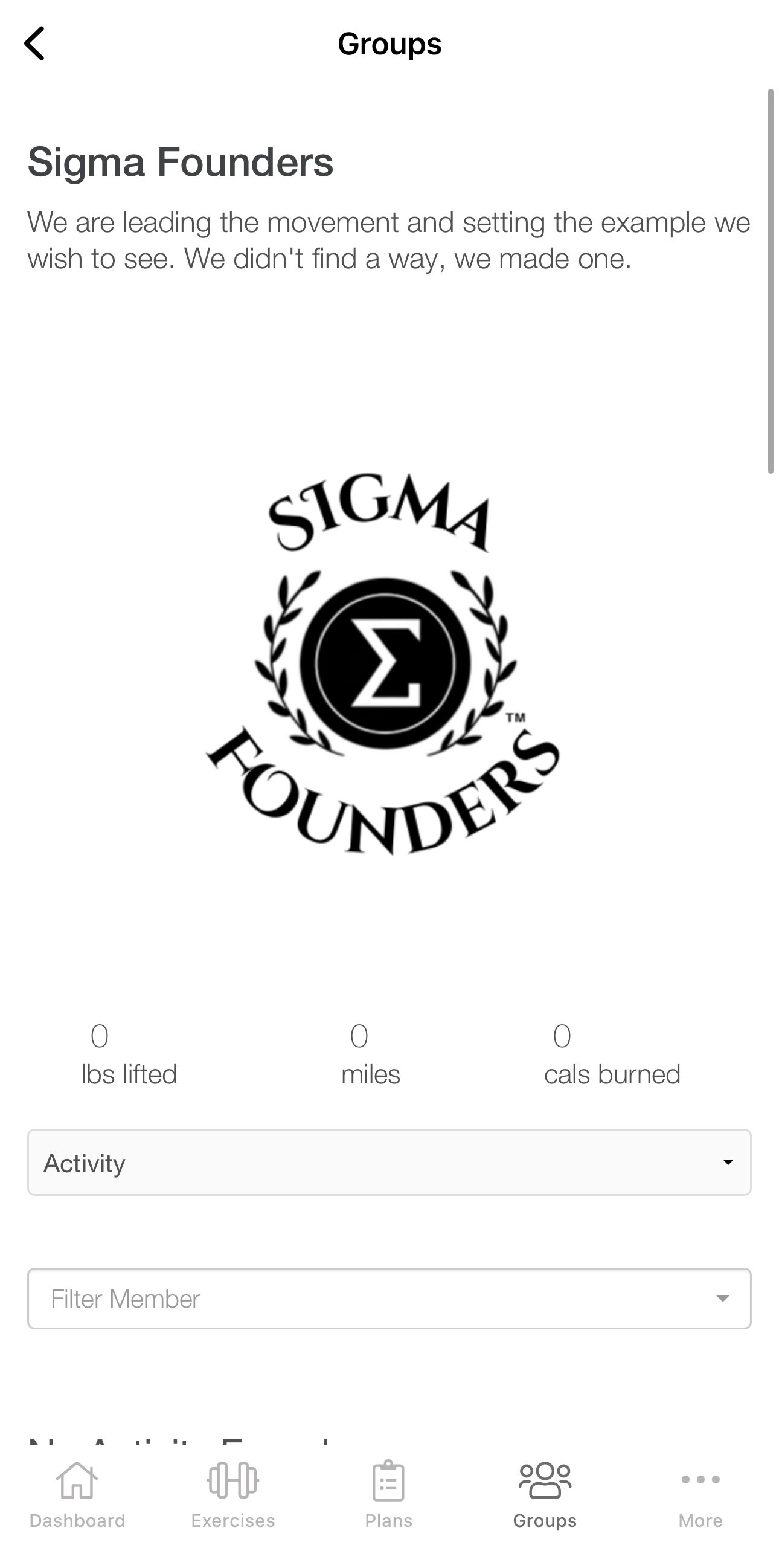
If you were notified you have been added to a private group or would like to join a public one, simply click on groups at the bottom of your screen, click on the group you would like to look at, and boom! All attributes and aspects of the group will be there where you can add to discussion, answer a poll, and more!



step 5: More Tab
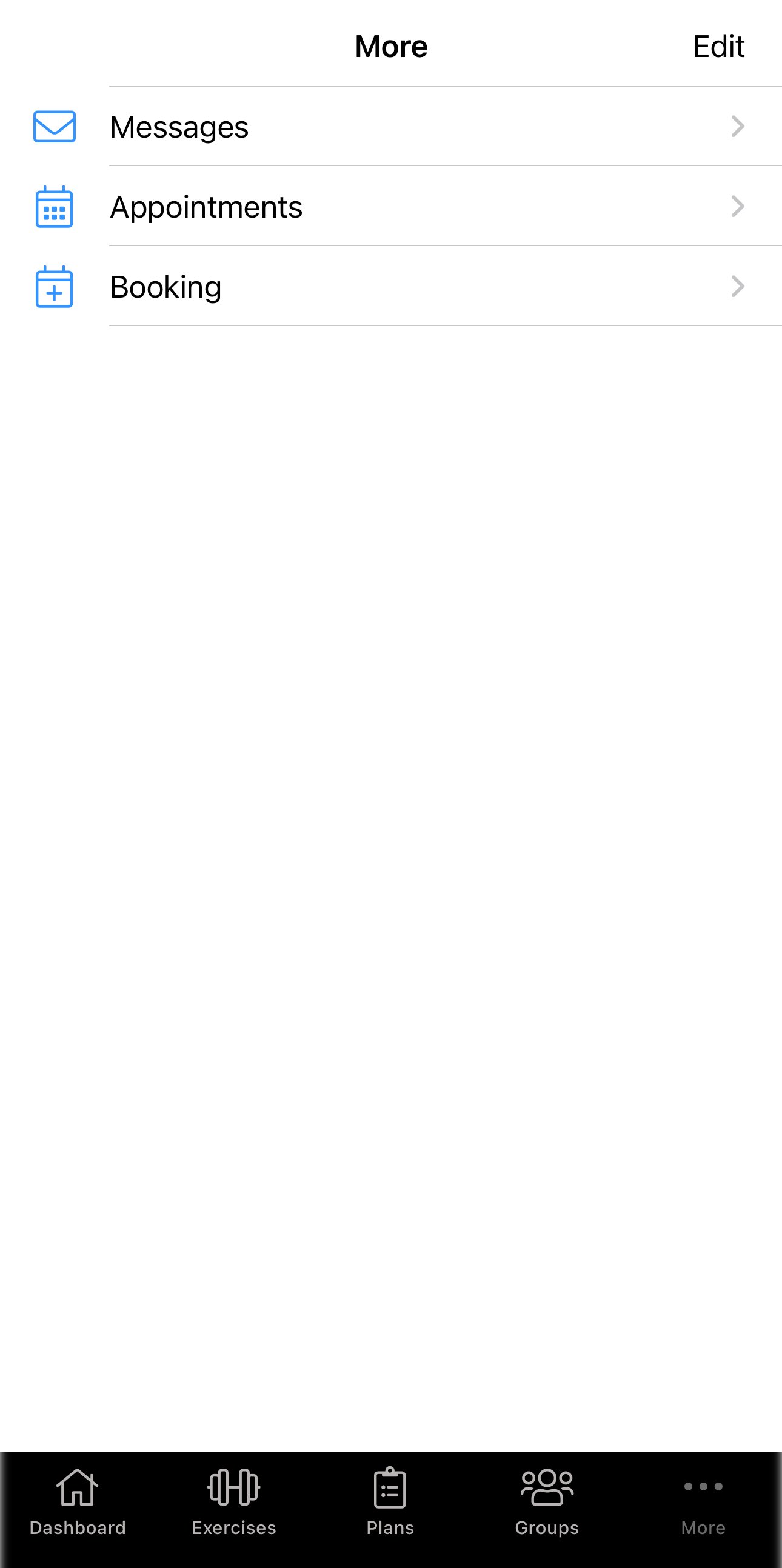
here, in the more tab, you will find 3 features: messages, Appointments, and Booking.
Messages: Here you can send a direct message to your trainer or additional staff, if assigned, in case of any questions or concerns!
Appointments: Here you will find any upcoming appointments that may have been assigned to you including consultations, classes, coaching sessions, and more!
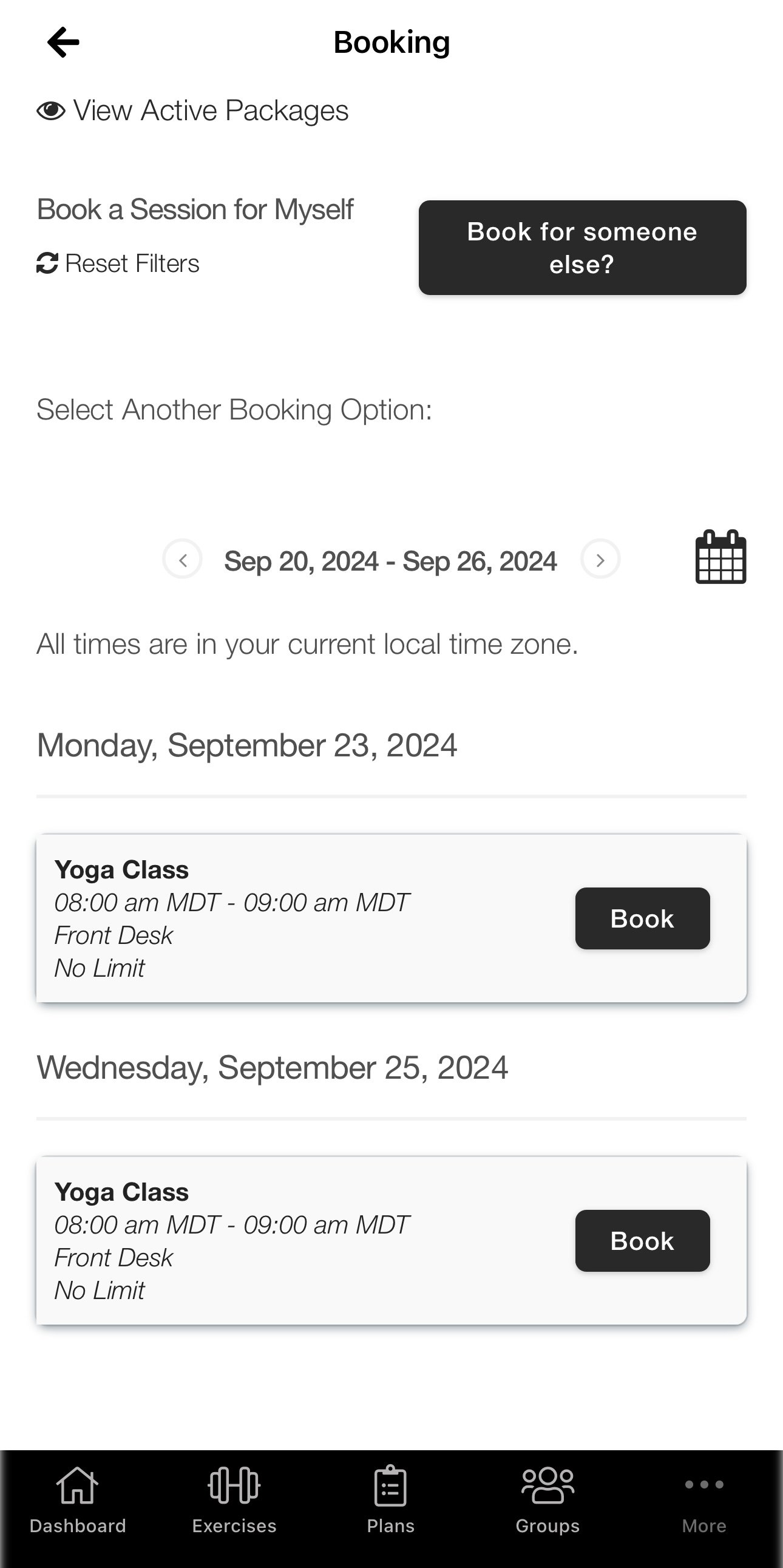
Booking: Here you can find available classes with time and dates after purchasing a package! You must have purchased a package to have access to this feature.
Step 6: side bar
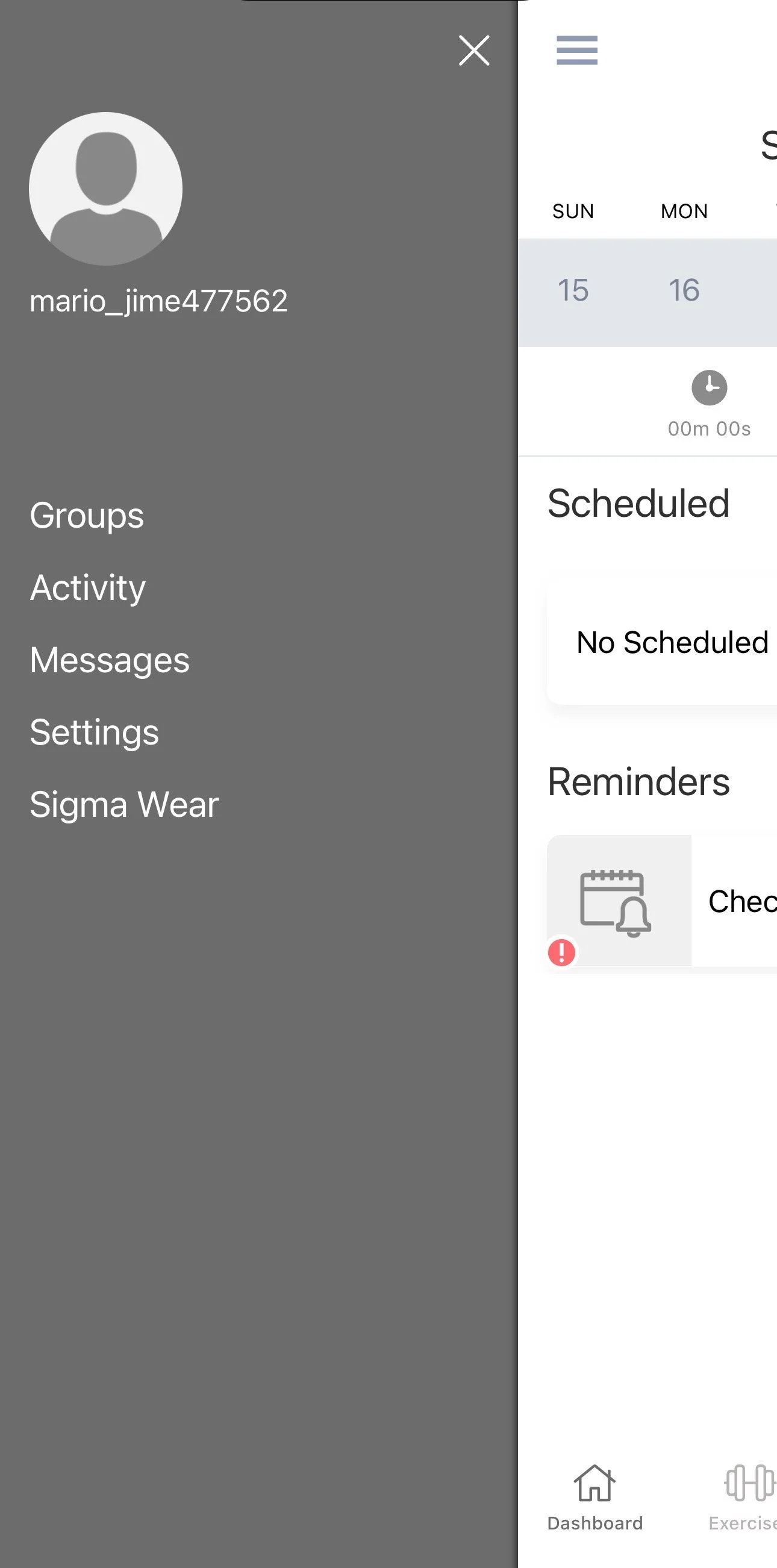
Here in the sidebar, there is quick access to a variety of links, including groups, messages, profile settings, account activity, and a quick link to our clothing page Sigma Wear “It’s more than just clothing…” To access this, simply click on the 3 lined bar in the top left corner of the screen from the home page!